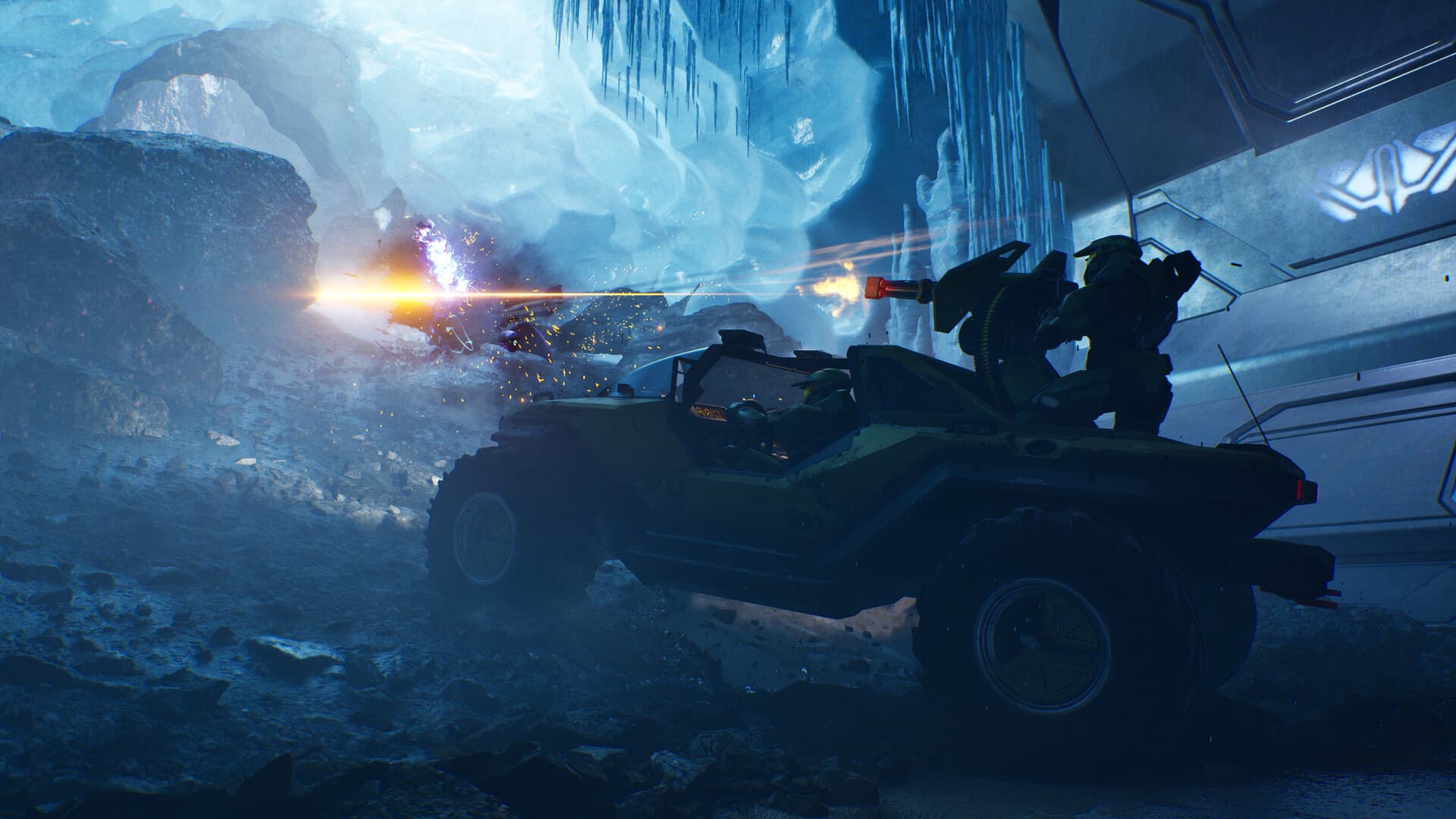
Build a stable native baseline first
Before enabling frame generation or aggressive upscaling, match the game’s output resolution to the display, select fullscreen behavior that works reliably with the desktop, disable any unintended dynamic-resolution target, and test a repeatable combat checkpoint. Set textures according to available video memory, then lower shadows, volumetrics, reflections, and effects one step at a time if the GPU remains saturated. Texture quality usually affects memory more than raw frame rate, while heavy lighting options can change both performance and visual clarity.
Use the game’s own frame limiter or a proven driver limiter instead of stacking multiple limits. A cap the machine can hold during Covenant firefights feels better than a higher number that collapses during explosions. Keep motion blur, camera shake, chromatic treatment, depth of field, and film-grain-style processing low or disabled when target recognition is the priority. Those choices are subjective, so compare the same scene rather than copying a universal preset.
Upscaling is a performance tool, not the first fix
At 1440p or 4K, start with the highest-quality DLSS, FSR, or XeSS mode supported by the installed GPU and driver. Drop to Balanced only when the Quality mode cannot meet the chosen cap. At 1080p, native rendering or a quality reconstruction mode usually preserves HUD lines, weapon edges, foliage, and distant Grunts better than a lower internal resolution. Sharpening should be added sparingly after the reconstruction mode is chosen, because high sharpening can turn film grain and specular highlights into distracting shimmer.
Frame generation is most useful after the base frame rate is already responsive. It can make camera motion appear smoother, but it does not replace the low-latency feel of strong native performance. Measure input response during strafing and precision shots, keep latency reduction enabled when supported, and disable frame generation if the image shows unstable UI elements or the base rate falls too low.
Apply the launch-specific official workarounds
The release notes identify cinematic stutter when a display refresh rate is not an even multiple of 30 Hz. Test 60, 120, or 240 Hz, enable the television’s Game Mode, and temporarily disable variable refresh rate if cutscenes hitch. On Steam, launch the title from the Steam library instead of running HaloCampaignEvolved.exe directly; the direct executable can start without the proper Steam connection and lead to sign-in, performance, or freezing problems.
AMD driver versions 26.6.2 and 26.6.4 are associated with a crash when skipping The Maw introduction while FSR is active, so watch that cinematic or change the affected combination until a newer supported driver resolves it. Some Intel thirteenth- and fourteenth-generation processors may crash before the splash screen because of a wider microcode issue; update the motherboard BIOS from its manufacturer rather than applying random game-file changes.